

Track tasks
The Tasks page shows what Nod is working on, what's scheduled and what's done.
Until there's something to show, the page helps you start instead. Select something that takes a while or something that repeats to ask Nod in your own words or pick an idea. The views appear once Nod has a task, a schedule or a past run.
When writing a task or schedule request, press Enter to send or Shift+Enter for a new line.
Nod completes a coherent request in chat, including work with several app or browser steps. It starts a saved task for independent work, a long outside wait, or work you ask it to track.
For example, "Compare these options and make a report" can stay in chat. "Ask three venues for quotes and tell me when they've all replied" starts a saved task. "What time is this meeting?" stays in chat. The main chat stays available while tasks work. Each task keeps its goal and history, and its start message is its acknowledgement.
Tasks share one workspace and owner memory. Each task has its own working folder and saved session. See Task sessions for the architecture.
Three views
Section titled “Three views”| View | Shows |
|---|---|
| Current | Open task cards, with the ones that need you first |
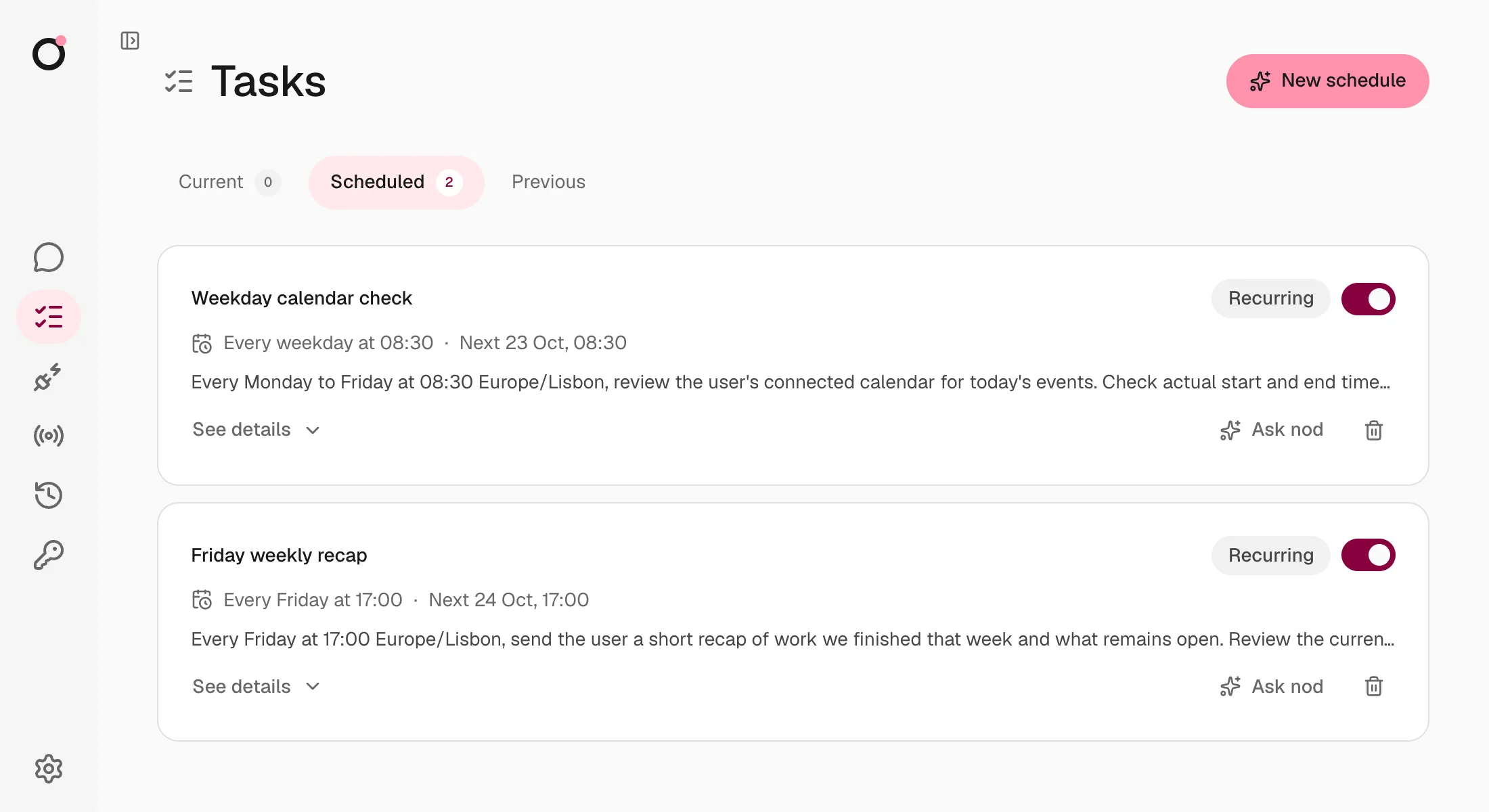
| Scheduled | Your schedules and Nod's planned check-ins. See Schedules. |
| Previous | Finished cards and past schedule runs, newest first |
What a card shows
Section titled “What a card shows”| Part | What it tells you |
|---|---|
| Title | The task in a few words |
| Status | Where the task stands, such as Working or Needs you |
| Now line | What Nod is doing, with the website it's on while it browses, or the question it asked you |
| Waiting on | Who Nod is waiting for, and how, such as an email reply |
| Next check | When Nod will look again |
| Done when | What finished looks like |
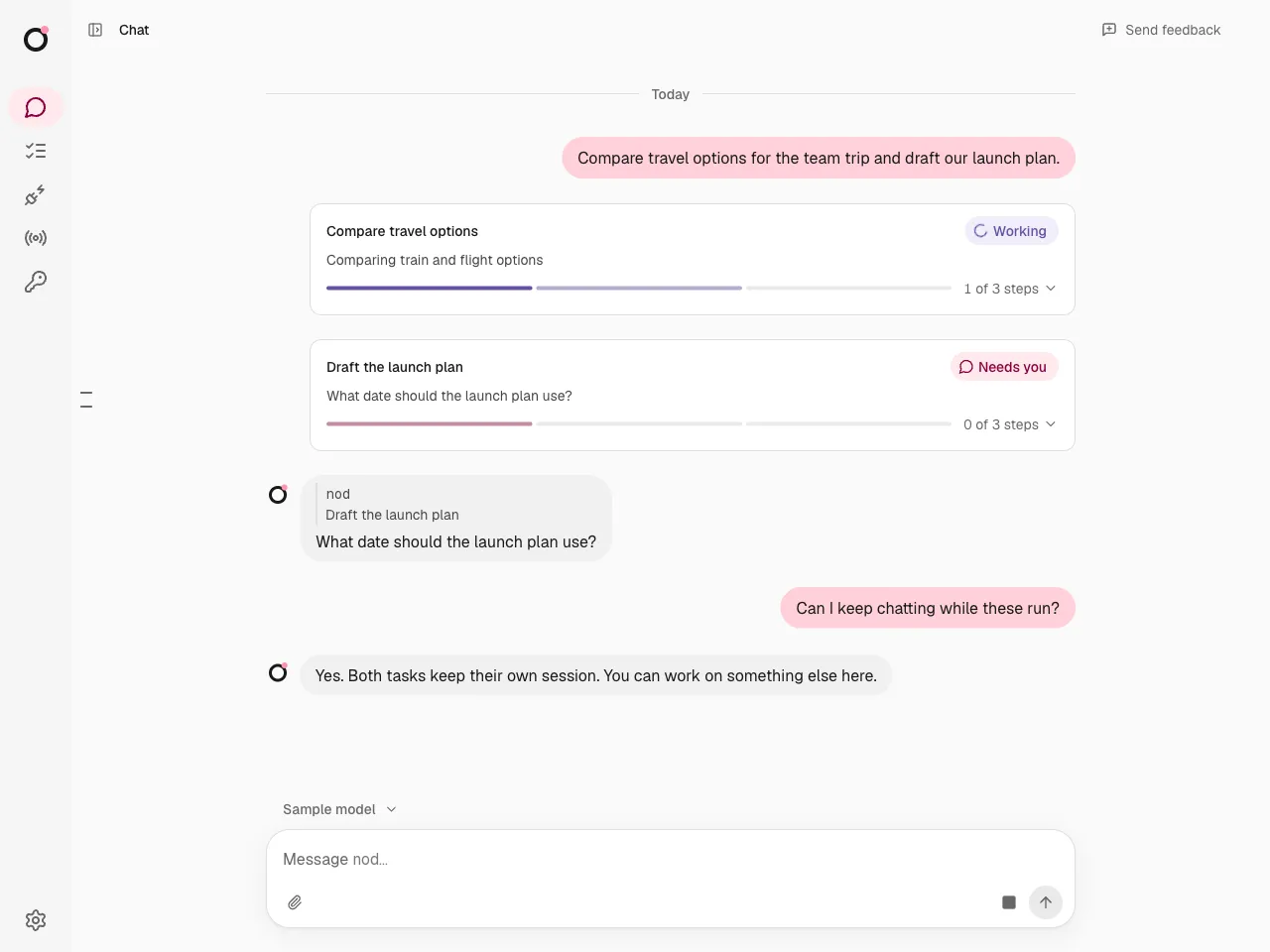
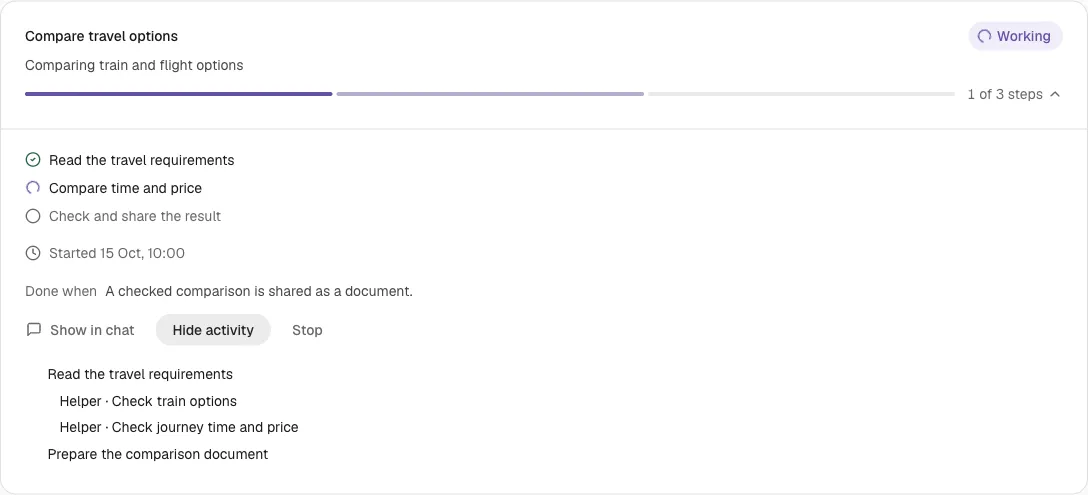
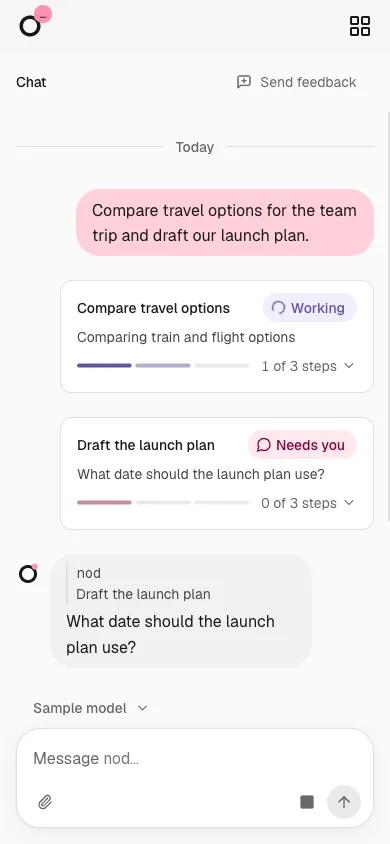
The same compact task preview appears in chat and on the Tasks page. It shows the title, status, current activity and, when steps are available, a segmented step bar. Select the preview to open its available steps and controls in place. Select it again to close the details. While a task works, its card and a bubble at the bottom of the chat show its current activity and, while it browses, the website it is on. Useful, verified milestones also arrive as chat messages, with what is complete and what remains. Inside the details, select Show activity to read Nod's steps and messages, with its tool steps in between. This view does not show private model reasoning.
The activity bubble shows the task title above its current step. Both wrap so you can read the full text.
Reply or stop one task
Section titled “Reply or stop one task”Reply to a task message to continue that task. You can reply to its first message, a question or a result. Telegram and WhatsApp use their reply controls. A message without a reply target goes to the main chat. Nod can send that message to one or more open tasks when your intent is clear. If the target is unclear, Nod asks. To pick up a finished or stopped task, reply to one of its messages.
An owner update has a revision. Owner update queued means the task has not received it at an execution boundary. An outside action that has already started can still finish. Other tasks continue while one task waits for your answer.
Open a task preview and select Stop to stop that task and its helpers. Other tasks continue. The main Stop control stops active work and closes all open tasks. You can also ask Nod in the main chat to stop one task, or all background work, including scheduled runs and app checks. Reset also closes the old thread's open tasks.
A task checks in when its spending since your last message to it passes the amount you set in Usage, $5 by default, and asks whether to keep going. See Task check-ins.
Rename a task
Section titled “Rename a task”Open its preview and select its title in the details. Change the display name, then select Save. The task goal and original request stay the same. Cancel or Escape discards the edit.
Inspect task activity
Section titled “Inspect task activity”On the Tasks page, open a preview and select Show activity. The details show planned steps, Nod's steps and messages, and the tool and helper steps between them, such as Searched the web or Gmail: send email. Select Show in chat to return to the task's message.
Read task results
Section titled “Read task results”A task delivers its result where you asked for it. When you ask for something a connected app holds, such as a sheet, a document or email drafts, Nod creates it in that app even if you don't name it. Other complete reports can be Markdown documents. Nod sends the file and a short result to the conversation. A follow-up, such as completing a sign-in, continues the same saved session.
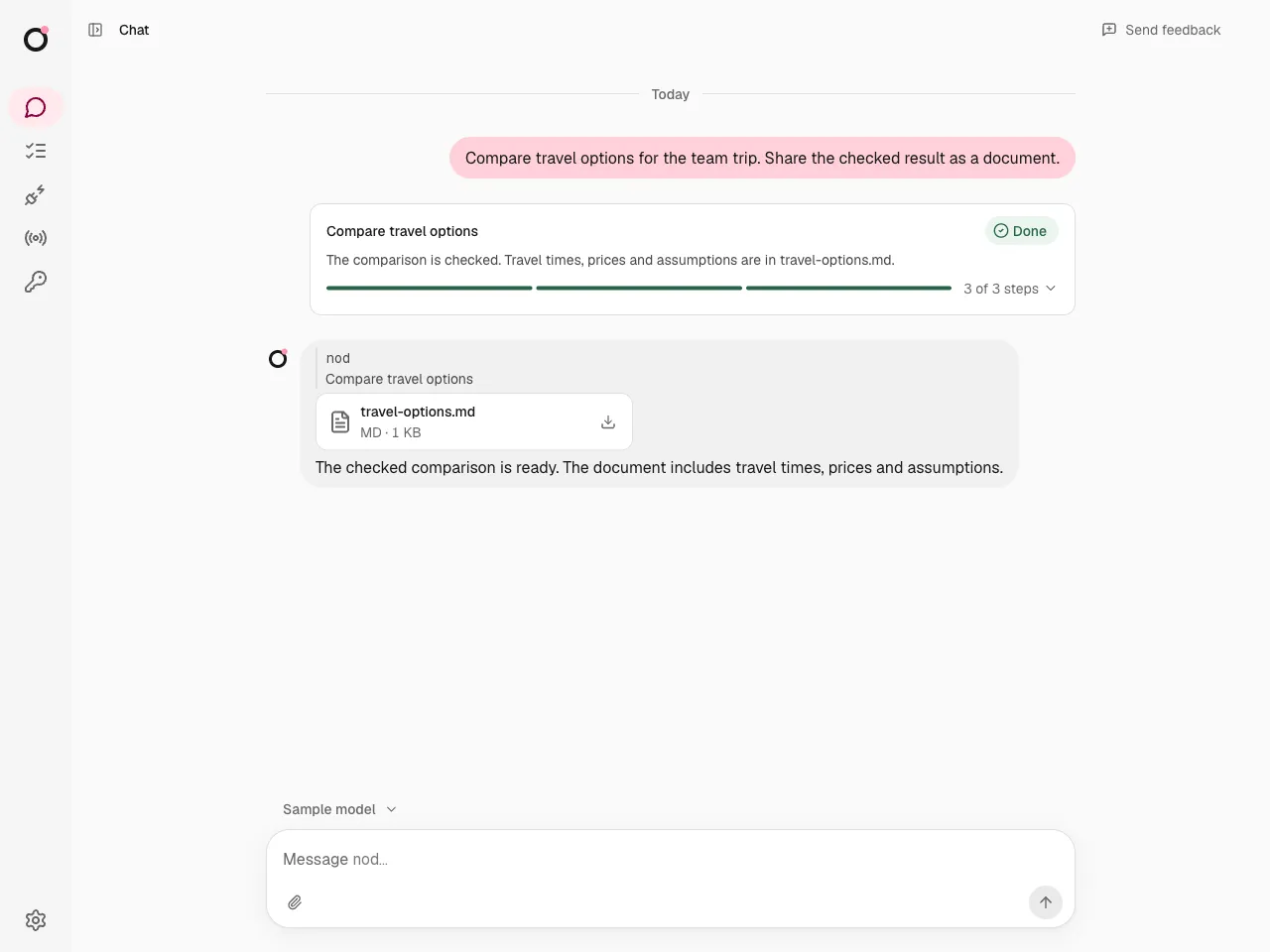
Select the file to read it in a panel next to the chat. Select Download to save it. Press Escape to close the panel. See Get files from Nod for every file type the panel opens.
Nod previews Markdown files up to 4 MB. For a larger file, select Download.
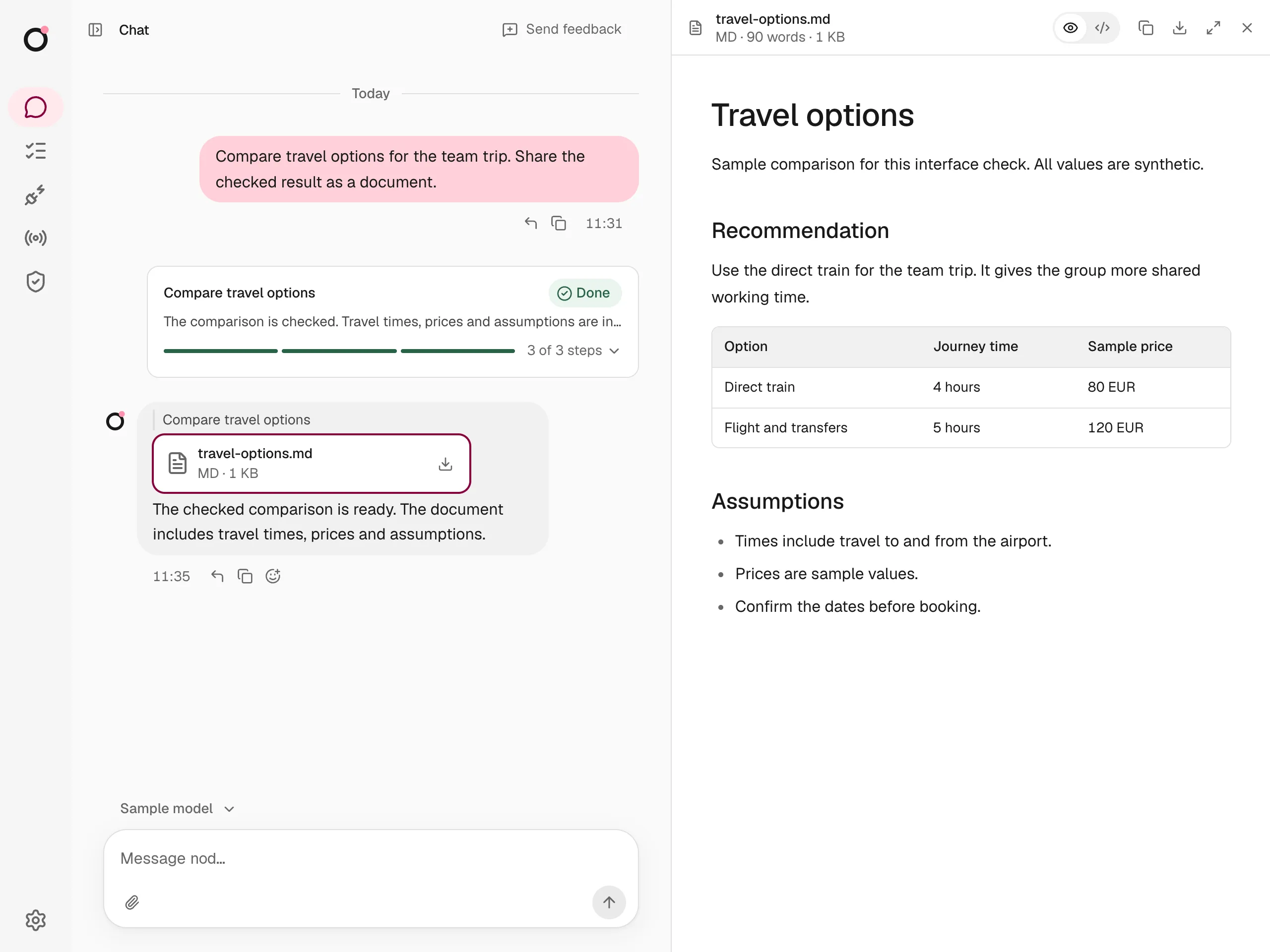
A finished card has Schedule task, which turns the same work into a schedule. Open Usage to review the task's cost and recorded app actions.
Use tasks on mobile
Section titled “Use tasks on mobile”Mobile web uses the same compact previews. Open a preview to read the steps, reply or stop one task.
Telegram and WhatsApp without a task page
Section titled “Telegram and WhatsApp without a task page”Telegram and WhatsApp show each task as messages Nod writes in your language. The first one says what it is starting. Questions, approval requests and the result reply to that message, so they stay linked to the task.
Use the chat app's Reply control to send an update or answer to a task. Other messages go to the main chat. These commands answer from Nod's task records, and Nod words the reply:
| Command | Result |
|---|---|
/tasks |
List open tasks and their current state. |
/status |
Show each open task's goal, steps and current state. Reply to a task message to see only that task. |
/stop |
Stop all active work and close open tasks. Reply to a task message with /stop to stop only that task. |
The task list sends one message per task. You can reply to that message, the task's first message, a question, a file, a result or a status response. If Nod cannot match a reply to a task, /stop asks you to select a task. It does not stop all work.
A status message that shows a pending question keeps a link to that exact question. Your approval applies only to the saved action it shows. An old status message cannot approve a later action.
Telegram, WhatsApp and web use the same task record and saved session. Task commands do not grant permission for an outside action. Private sign-in and payment steps still use Nod's private forms.
Statuses
Section titled “Statuses”| Status | Meaning |
|---|---|
| Queued | The task is waiting for its session to run. |
| Failed | The run failed. Reply to its message to continue. |
| Working | Nod is on it right now. |
| Needs you | Nod asked you a question or needs an approval. Reply to its message. |
| Waiting | Nod is waiting on someone else. |
| Checking back | Nod has a check planned for later. |
| Stalled | Nothing is planned next. Tell Nod to keep going or stop. |
| Done | Finished, with the result on the card. |
| Stopped | Closed before it finished. |
stateDiagram-v2
  direction LR
  state "Needs you" as needs
  state "Checking back" as checking
  [*] --> Working
  Working --> needs: question, failure or stop
  needs --> Working: you reply
  Working --> Waiting: waits on someone
  Working --> checking: check planned
  Working --> Stalled: nothing planned
  checking --> Working: check runs
  Working --> Done
  needs --> Stopped: you move on
A question stays Needs you until you reply to it or continue its session. An unrelated chat message does not answer it. A failed or stalled task opens its card, so Reply and Stop are in view. A stopped task shows Stopped. Reply to the task to continue the same saved session. While a task works on your reply, the chat shows that Nod is working.
Task status and permission
Section titled “Task status and permission”A card is a view of the work. It does not grant permission or schedule a check. Schedule task creates an ordinary schedule. Every outside action still goes through the trust check.
To change a task, tell Nod in chat.